
Your TV.
Your way.
Control your Google TV or Android TV right from your iPhone or iPad. Enjoy directional navigation, fast keyboard input, and instant app launching—all over your local Wi-Fi.
App Store — coming soonFor iPhone & iPad · Google TV & Android TV
Every control. One companion.
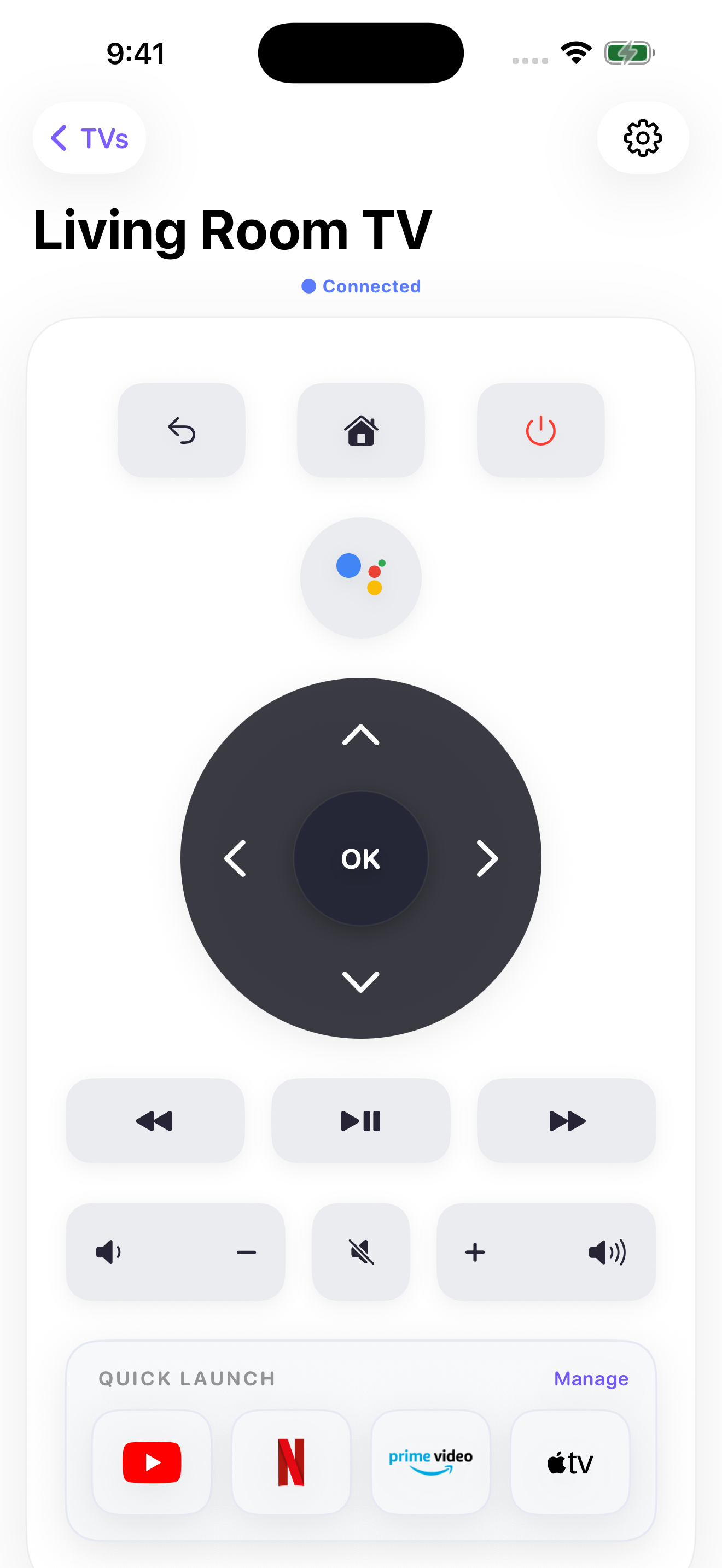
From everyday navigation to Siri routines, here’s what Naviik brings to your Google TV or Android TV.
Navigation
Move around your TV with the directional pad, confirm a selection, go back, return home, or toggle standby.
Volume & Mute
Easily adjust the volume or mute your TV.
Playback Controls
Play or pause, rewind, and fast-forward with familiar media controls.
Voice Input
Tap the microphone and speak to your connected TV’s assistant when it supports voice input.
TV Keyboard
Use your phone’s keyboard when your TV opens a supported text field.
Quick Launch
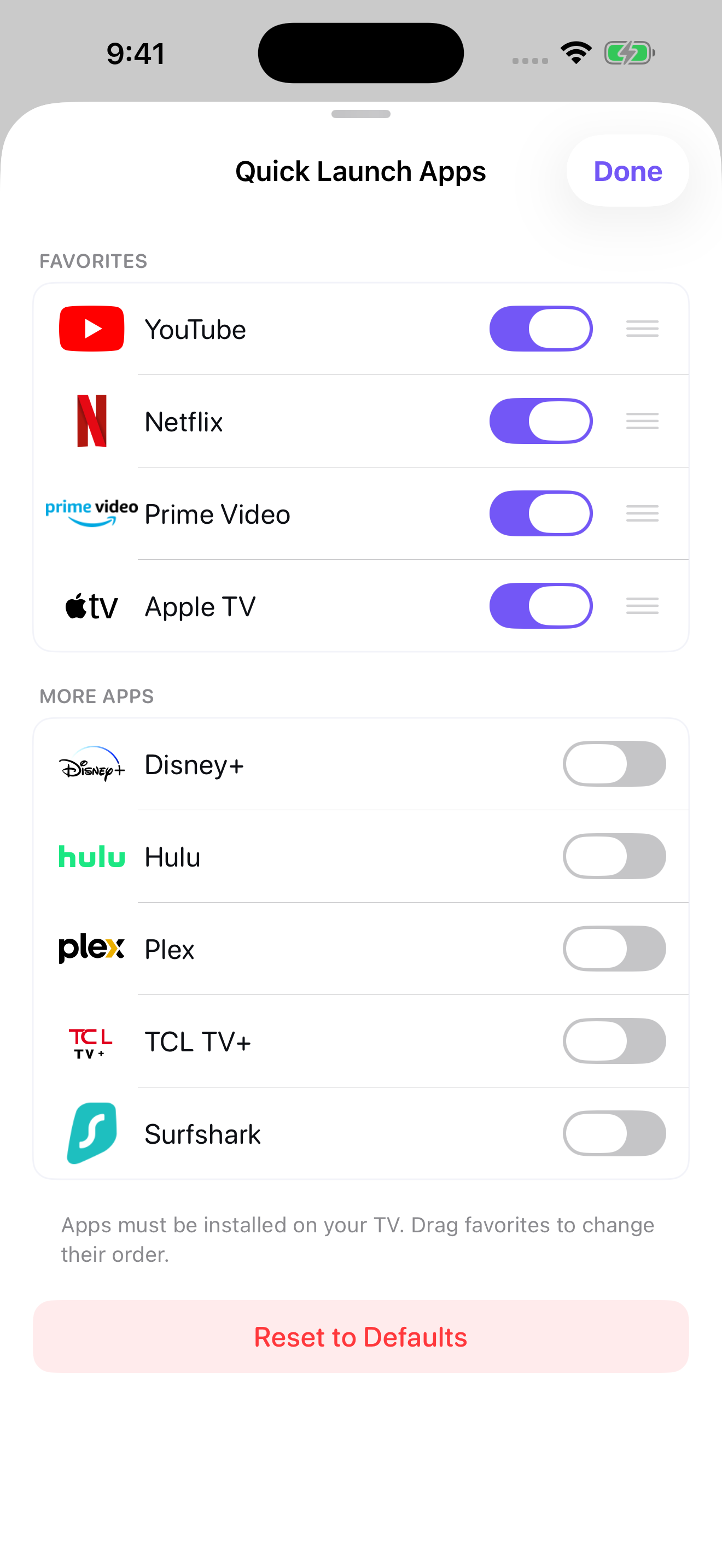
Choose your favorite supported apps and arrange their order. Apps must be installed on your TV.
Siri & Shortcuts
Use Siri or build Shortcuts routines to toggle power, mute and playback, adjust volume, or open supported apps.
Saved TVs
Quickly connect to saved paired TVs on the same local network.
Your preferred feel
Choose light, dark, or system appearance and turn haptic feedback on or off.
Pair over your local network
Connect with the code shown on your TV, then send remote commands over the same local network.
Your favorites, a tap away.
Choose which supported TV apps appear on your remote and arrange your favorites. You can also use Naviik’s app shortcuts with Siri or the Shortcuts app.
"Hey Siri, open YouTube on TV with Naviik."
A few words.
More control.
Ask Siri to control your paired TV, or add Naviik actions to a routine in the Shortcuts app.
- Toggle TV power, mute, or playback.
- Increase or decrease the volume.
- Open Netflix, YouTube, Disney+, Prime Video, or the Apple TV streaming app.
“Toggle TV power with Naviik”
“Open YouTube on TV with Naviik”
Pair your TV first and keep both devices on the same local network. Choose a Target TV in Shortcuts when you have more than one paired TV. Apps must be installed on your TV.
Start with pairing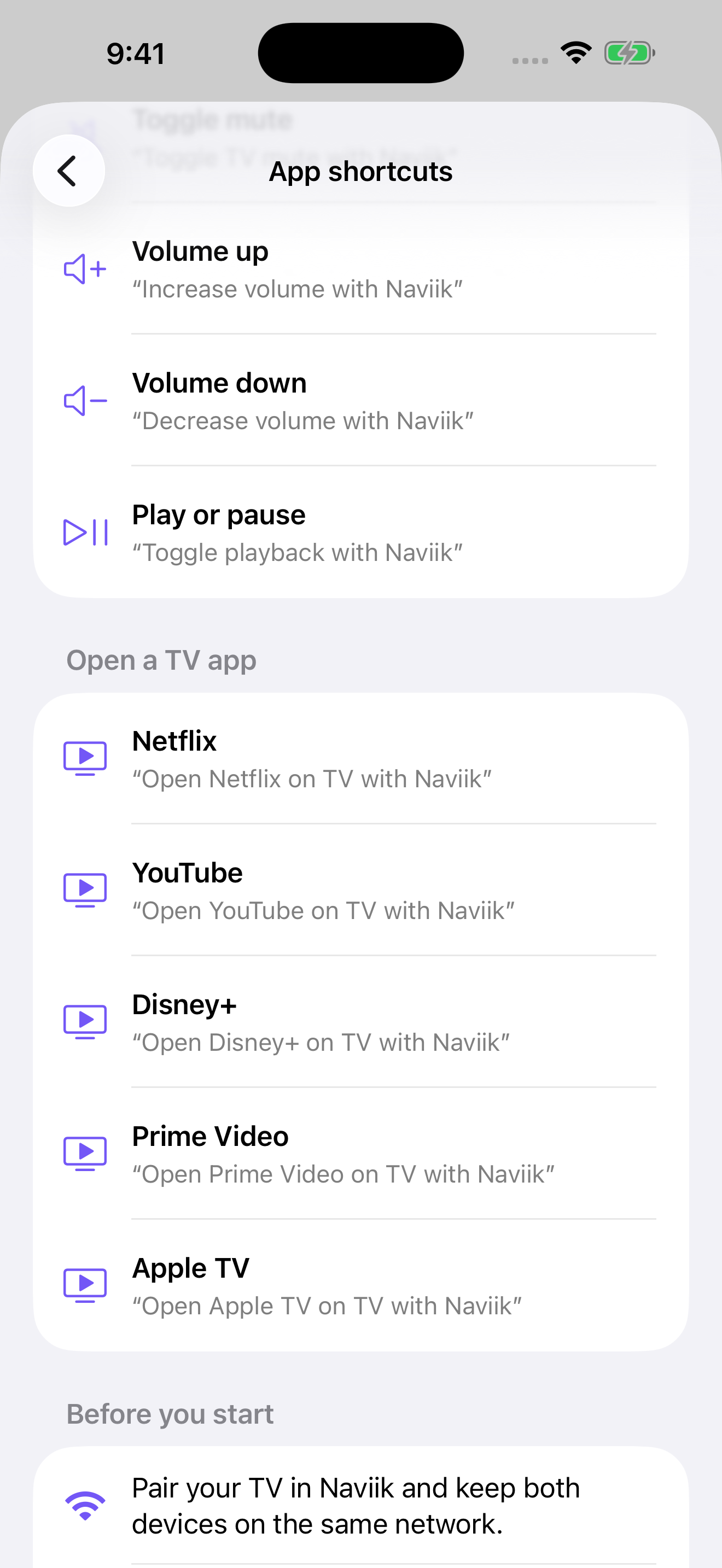
Get ready for Naviik
The App Store link is coming soon. Once Naviik is available, pair your TV in three steps.
Connect to Wi-Fi
Ensure your iPhone or iPad is connected to the exact same Wi-Fi network as your Google TV or Android TV.
Select your TV
Open Naviik. Allow local network access, scan for compatible TVs, and select yours.
Enter the pairing code
A secure pairing code will appear on your TV screen. Type it into Naviik, and you are ready to go.
Already paired? Explore Siri shortcuts or make Quick Launch your own.
Frequently Asked Questions
Which TVs are supported?
Naviik supports devices running Google TV and Android TV. Compatibility depends on your TV’s Android TV remote service and network settings. Your phone and TV must be on the same local network.
Note: Naviik does not support Samsung (Tizen), LG (webOS), Roku, or Apple TV devices.
Where can I get Naviik?
Naviik’s App Store link will be added here when the listing is ready. See download information.
Do I need an iPhone with an IR blaster?
No. Naviik communicates with your TV securely over your local Wi-Fi network. No line-of-sight or infrared hardware is required.
Can I stream the Apple TV app to my Google TV?
Naviik can launch the Apple TV streaming app if it is installed on your Google TV device, but Naviik is a remote control, not a media casting tool.